AI agents can now do real work on your behalf: summarize your inbox every morning, chase unpaid invoices, prepare client briefings, update spreadsheets, and file reports while you focus on customers. The hard part is no longer whether agents work, but how to set them up so they are useful, affordable, and safe. This step-by-step guide shows you how to design an AI agent, then walks through setting one up in the six tools small businesses use most in 2026: Claude, ChatGPT, Microsoft 365 Copilot, Google Workspace, Zapier, and n8n. It finishes with ready-to-copy agent recipes and the security rules every agent should follow.
Steps, plans, and prices were checked against each vendor’s official documentation on October 21, 2026. Agent interfaces change frequently, so menu names may differ slightly in your account.
Before You Start: Design Your Agent in 5 Questions
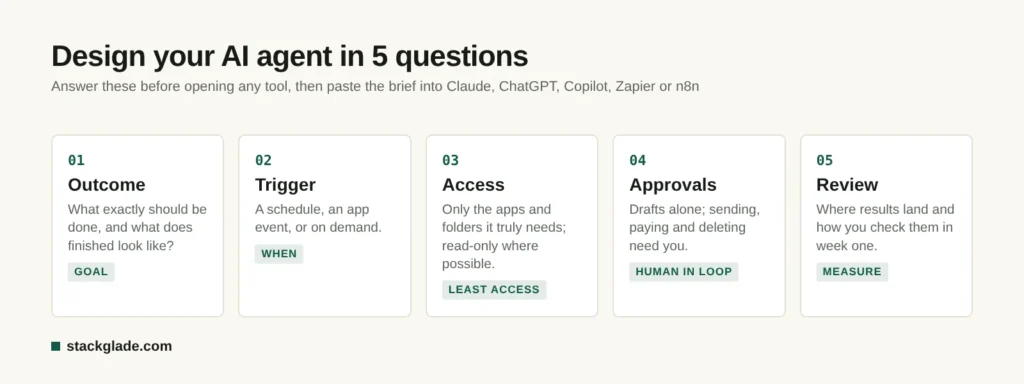
Most failed agents fail because of vague instructions, not weak AI. Answer these five questions on paper before you open any tool:
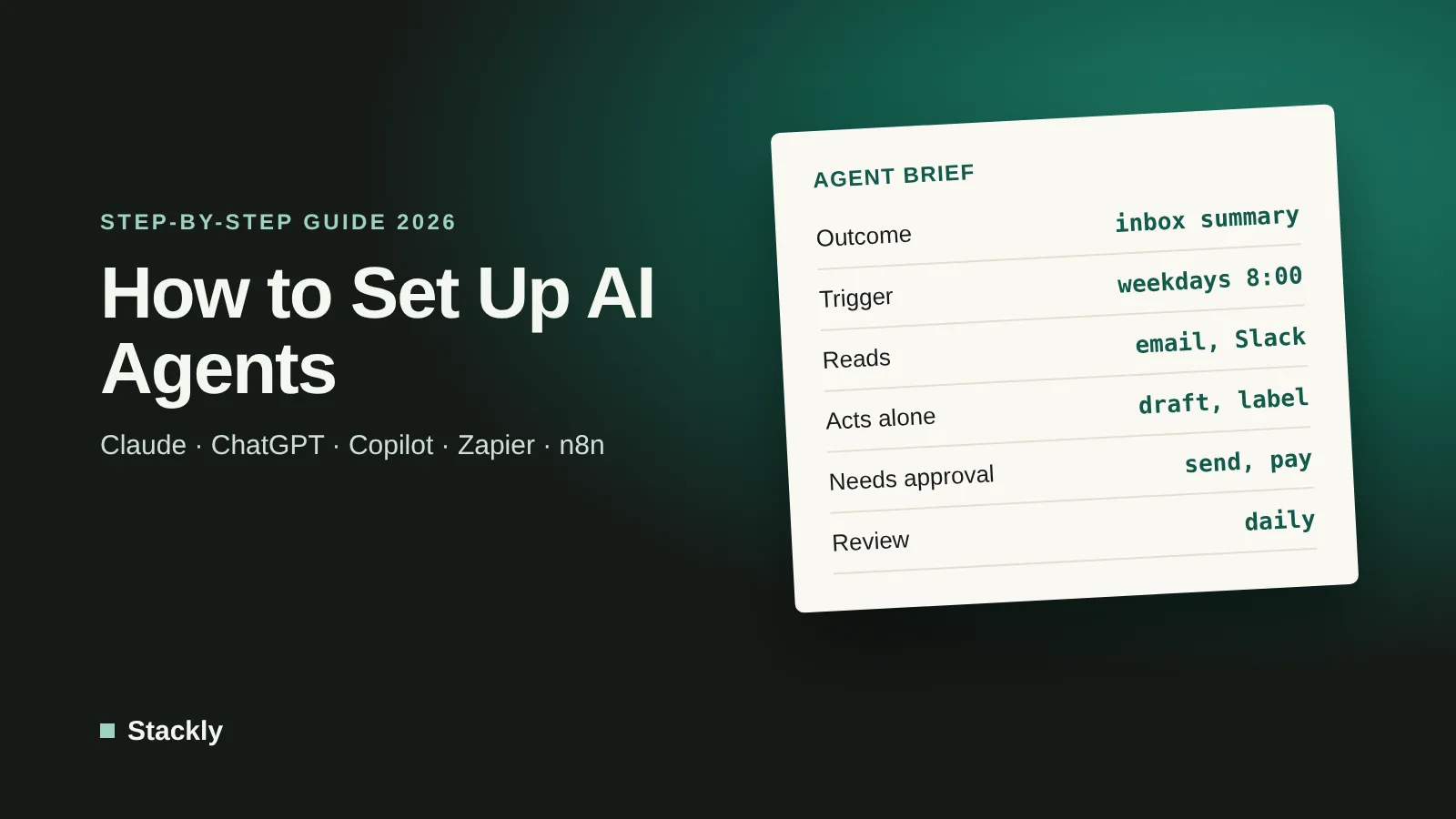
What is the outcome? “Every weekday at 8 a.m., send me a summary of new customer emails with urgent ones flagged” is a good outcome. “Help with email” is not.
What triggers it? A schedule (every Monday), an event (a new form submission), or you asking it.
What can it read? List the exact apps, folders, or data sources it needs, and nothing more.
What can it do on its own, and what needs approval? Drafting is usually safe; sending to customers, spending money, or deleting data should need your approval.
How will you check it? Decide where results appear and how you will review them in the first weeks.
Write the answers as a short instruction block. You will paste it into whichever tool you choose.
Answer these five questions before you build any agent.
Cowork, scheduled tasks, connectors, Claude in Chrome
Pro $20/month ($17 annually)
ChatGPT (Work and dots)
Multi-step projects and always-on assistants
ChatGPT Work, scheduled and event tasks, dots
Scheduled tasks from Free; dots on Pro and Business Premium
Microsoft 365 Copilot
Teams on Outlook, Word, Excel, Teams
Agent Builder, Researcher and Analyst agents
Copilot Business $21/user/month ($18 promo)
Google Workspace
Teams on Gmail, Docs, Sheets
Workspace Studio flows; Gemini Enterprise agents
Included in Workspace plans; Gemini Enterprise Business from $21/seat
Zapier Agents
Connecting many different apps
Agents with triggers, actions, and knowledge
Free (400 activities); Pro $33.33/month billed annually
n8n
Technical users who want full control
AI Agent node with tools, memory, human review
Cloud from €20/month; free self-hosted
How to Set Up an AI Agent in Claude (Cowork)
Claude Cowork lets Claude carry out multi-step tasks across your files, connected apps, and browser. It is available on paid plans (Pro, Max, Team, and Enterprise) in the desktop app, with web and mobile access on most plans.
Connect your tools. Go to Customize, then Connectors, and connect the apps the agent needs, such as Gmail, Google Drive, Slack, or a CRM. You can set each tool to Always allow, Needs approval, or Blocked, which is the easiest way to keep sensitive actions under control (Claude Help Center).
Start a Cowork task. Choose Cowork in the message box and describe the outcome using your five-question brief.
Review the plan. Claude proposes a plan before it acts. Check it, adjust it, then let it run.
Choose an approval mode. Manual (the default) asks before each action; Auto uses a safety check on each action; use Manual for anything sensitive.
Make it recurring. Go to Scheduled, then New task, and either let Claude help you set it up or enter the name, prompt, approval mode, and frequency (hourly, daily, weekly, or weekdays) yourself. Scheduled tasks run remotely, so your computer does not need to be on unless the task needs local files (Claude Help Center).
Tip: Put your brand guidelines and standard procedures in a Claude Project so every task follows them. Anthropic’s own safety guidance recommends a dedicated working folder, manual approval for anything hard to undo, and starting scheduled tasks with low-risk work. Our Claude guide explains which model to choose for each task.
How to Set Up an AI Agent in ChatGPT (Work, Scheduled Tasks, and Dots)
OpenAI offers three levels of agent help:
Scheduled tasks run a prompt on a schedule, available from the Free plan, with limits of 3 active tasks on Free and Go, 5 on Plus, 10 on Business, and 15 on Pro and Enterprise. Event-triggered tasks (for example, when a Gmail message arrives) require Plus or higher (OpenAI Help Center).
ChatGPT Work handles multi-step projects with a plan you approve first, using plugins, a built-in browser, and scheduled or team tasks (OpenAI).
Dots are always-on agents that keep working on goals between conversations; your first dot is included with Pro and Business Premium (OpenAI Help Center).
To set up a recurring agent in ChatGPT:
Connect the apps you need in Settings, then Apps.
Open ChatGPT Work and describe the task and schedule, or the event that should trigger it.
Review the proposed plan and trigger, then confirm.
Turn on notifications in Settings so you see results.
For a dot, create it in the ChatGPT app, connect apps, and set Custom Rules for each type of action: act without asking, act if pre-approved, ask first, or hand off to you.
How to Set Up an AI Agent in Microsoft 365 Copilot
With a Microsoft 365 Copilot license, you get pre-built agents such as Researcher, which produces cited reports from your question, and Analyst, plus Agent Builder for your own agents (Microsoft Learn):
In the Copilot app, select New agent.
Describe what you want in plain language, or choose Configure to enter a name, description, and instructions (up to 8,000 characters).
Add knowledge sources such as SharePoint sites, Teams chats, Outlook, files, or websites.
Add starter prompts and optional tools such as the code interpreter.
Test it in the Try it panel, then share it with colleagues.
Agent Builder cannot connect to outside services; for that, agents can be moved to Copilot Studio. Copilot Business costs $21 per user per month, with an $18 promotional rate through December 2026 on annual plans (Microsoft).
How to Set Up an AI Agent in Google Workspace
Google offers two routes. Workspace Studio lets you build automated flows with Gemini steps inside Gmail, Docs, Sheets, and Drive, and is included in Business Starter, Standard, and Plus plans when your admin enables Gemini (Google Help):
Open Workspace Studio and describe the flow to Gemini, pick a template, or start from scratch.
Choose a starter: an event (such as a new email), a schedule, or manual.
Add steps, including Gemini AI steps that summarize, classify, or draft.
Test carefully: test runs perform real actions, such as sending messages.
For more advanced agents, Gemini Enterprise Business starts at $21 per seat per month for teams of up to 300 and includes a Deep Research agent and a no-code Workflow Builder (Google Cloud).
How to Set Up an AI Agent in Zapier
Zapier Agents is the most flexible no-code option when your agent needs to work across many apps:
Go to agents.zapier.com and click New agent, or start from a template.
Write instructions: what triggers it, what it should do, and which apps it uses.
Connect the apps and configure the trigger: on demand, on a schedule, from a Zap, or when an app event happens.
Add knowledge sources such as documents or spreadsheets.
Test it, then publish. Triggers only run after publishing, and you can review every run in the Activity tab.
The free plan includes 400 activities per month, and Pro costs $400 per year (about $33.33 per month) for 1,500 activities (Zapier).
How to Set Up an AI Agent in n8n
n8n suits more technical users who want control over models, data, and hosting:
Create a workflow with a trigger, such as a Chat Trigger, schedule, or webhook.
Add the AI Agent node and connect a chat model (for example from OpenAI or Anthropic).
Connect tools such as HTTP requests, Google Sheets, or other workflows, and optional memory.
Write the system message with your instructions and set a maximum number of steps.
Turn on human review for sensitive tools, so the workflow pauses until someone approves in chat, Slack, or Telegram.
n8n Cloud starts at €20 per month on annual billing for 2,500 executions, and the self-hosted Community Edition is free if you manage your own server (n8n pricing).
5 Ready-Made Agent Recipes
Agent
Trigger
Reads
Does
Needs approval
Morning inbox brief
Weekdays 8:00
Email, Slack
Summarizes and flags urgent messages
Nothing
Invoice chaser
Every Monday
Accounting software, email
Drafts reminders for overdue invoices
Sending each reminder
Lead qualifier
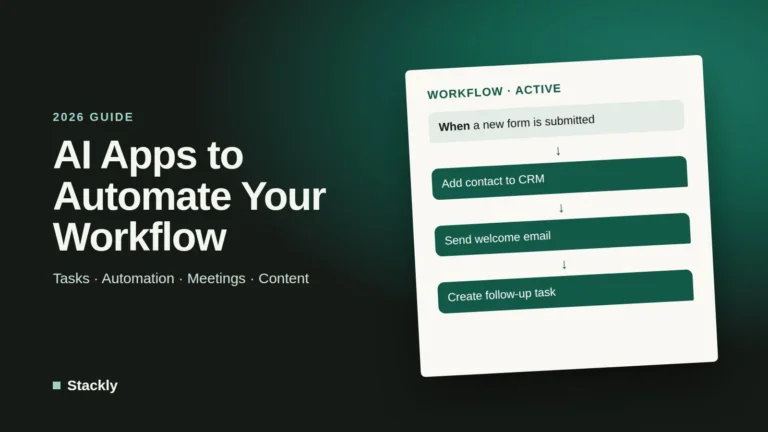
New form submission
Form, CRM
Scores the lead, adds it to the CRM, drafts a reply
Sending the reply
Meeting prep
1 hour before meetings
Calendar, CRM, email
Prepares a one-page client briefing
Nothing
Weekly report
Fridays 16:00
Sales, website, ads data
Builds a short performance summary
Sharing outside the team
You can paste any of these into the tools above. For example, for the invoice chaser in Claude or ChatGPT:
“Every Monday at 9 a.m., check [accounting tool] for invoices more than 30 days overdue. For each one, draft a polite reminder that includes the invoice number, amount, and due date. Do not send anything. List clients tagged VIP separately for me to contact personally.”
Agents act with your permissions, so mistakes and attacks have real consequences. The OWASP Top 10 for LLM Applications lists prompt injection, where hidden instructions in an email or web page manipulate an AI, as the top risk, and excessive agency, where an AI has more permissions than it needs, is another major risk. In December 2025, OWASP also published a dedicated Top 10 for Agentic Applications. In practice:
Give the least access possible. Connect only the apps and folders the agent needs, and prefer read-only access where you can.
Keep humans in the loop. Require approval for sending messages to customers, payments, deletions, and changes to important records.
Treat outside content as untrusted. Be cautious with agents that read the open web or inbound emails and can also take actions.
Watch for drift. If an agent opens files or sites you did not mention, stop the task and review its instructions.
Agents are not free: subscriptions, usage credits, and review time all add up. McKinsey’s 2026 State of AI survey found that 80% of respondents report better individual productivity from AI, but only 37% see an impact on company profits, and around 20% say AI usage costs have limited their plans. Gartner has also predicted that more than 40% of agentic AI projects will be canceled by the end of 2027 because of costs or unclear value.
Avoid that fate by tracking three numbers for each agent: hours saved per week, errors caught during review, and monthly cost. Keep the agents that clearly pay for themselves and switch off the rest. Our step-by-step guide on how to implement AI in your business shows how to run a 30-day pilot and calculate return on investment.
Frequently Asked Questions
What is the easiest way to set up an AI agent?
For most people, the easiest option is the assistant you already use. Scheduled tasks in ChatGPT are available even on the Free plan, and Claude’s Cowork and scheduled tasks are included in paid plans from $20 per month. Describe the outcome, connect the apps it needs, and keep approval on for important actions.
Do I need coding skills to build an AI agent?
No. Claude, ChatGPT, Microsoft Copilot Agent Builder, Google Workspace Studio, and Zapier Agents all use plain-language instructions and visual settings. n8n is more technical but still largely visual.
How much does it cost to run AI agents?
Many agent features are included in plans you may already pay for, such as Claude Pro or ChatGPT Plus at $20 per month. Dedicated tools start free, such as Zapier’s 400 monthly activities, with paid plans from around $20 to $35 per month. Heavy use and premium models cost more.
Are AI agents safe for business data?
They can be, if you limit their access, require approval for sensitive actions, use business plans with stronger data protections, and protect connected accounts with multi-factor authentication. Prompt injection and excessive permissions are the main risks to manage.
What tasks should I automate first with an AI agent?
Start with frequent, low-risk tasks that follow a clear pattern, such as inbox summaries, meeting preparation, weekly reports, and drafting (not sending) invoice reminders. Expand to customer-facing actions only once the agent proves reliable.
The Bottom Line
Setting up an AI agent is now a matter of minutes, but setting up a good one takes a clear brief, tight permissions, and a review habit. Start with one recipe from this guide in the tool you already use, keep approval on for anything important, measure the time it saves, and add a second agent only when the first one earns its place.

Leave a Reply